01
Tillora POS
Professional Administrator Dashboard
View cash-session totals, daily net sales, refunds, transactions, inventory alerts, gross profit and seven-day sales trends.
Open full-size screenshot →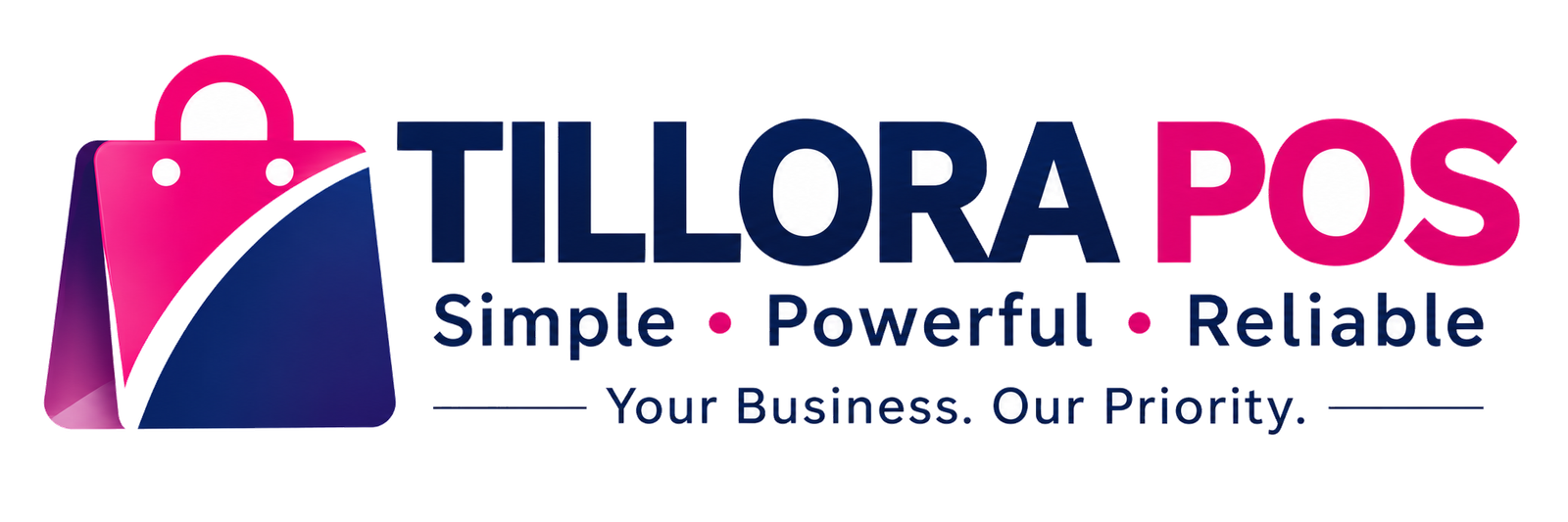
Take a closer look at Tillora POS. Explore updated Tillora POS Professional Offline Edition screenshots covering checkout, inventory, cash sessions, reporting, discounts, settings and more. Selected earlier-interface examples are clearly identified below.
Each image below includes a short explanation of what that part of Tillora is designed to do. Click an image to open the full-size screenshot.
View cash-session totals, daily net sales, refunds, transactions, inventory alerts, gross profit and seven-day sales trends.
Open full-size screenshot →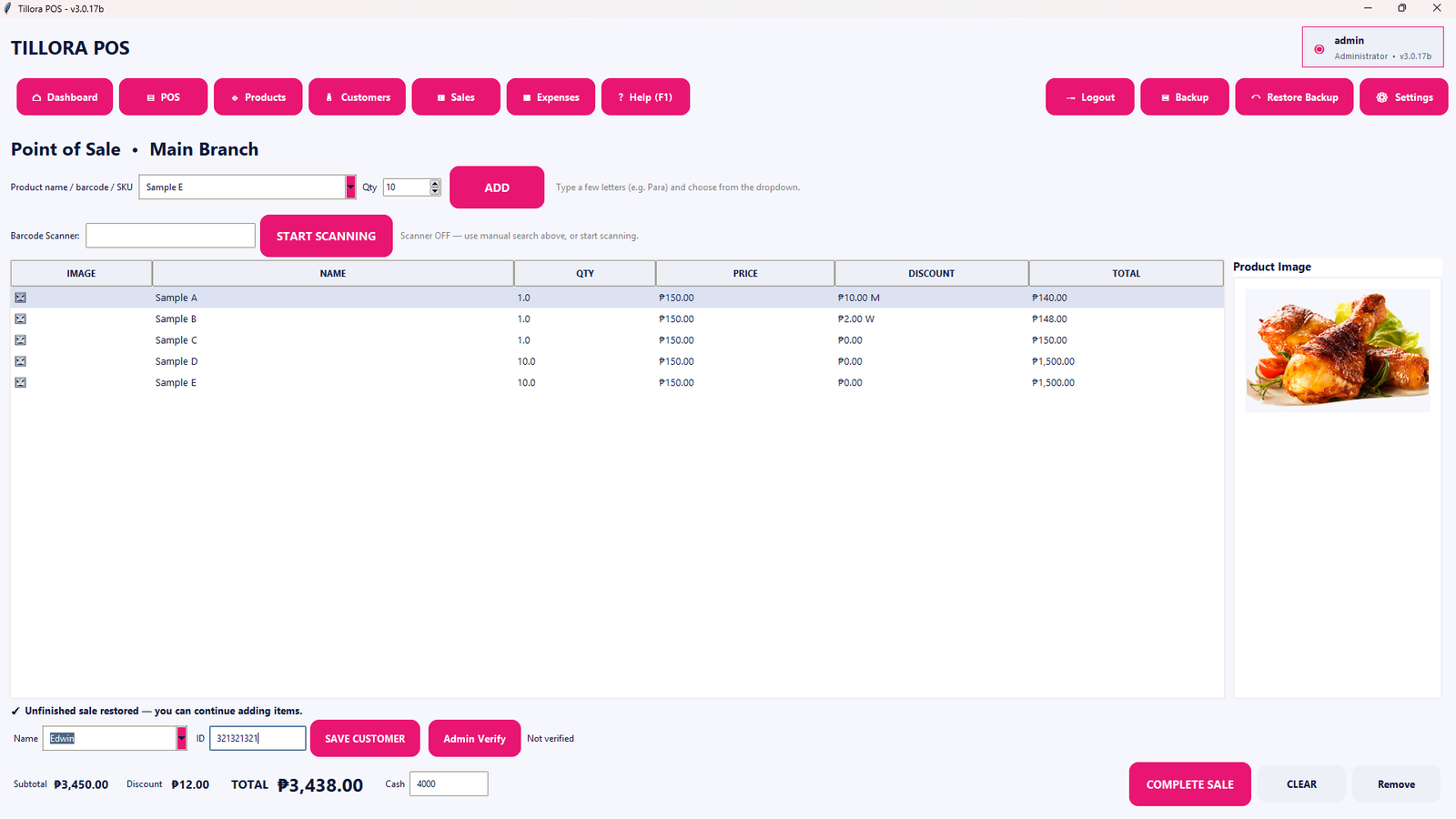
Handle everyday checkout with product selection, quantities and customer-facing sales workflows.
Open full-size screenshot →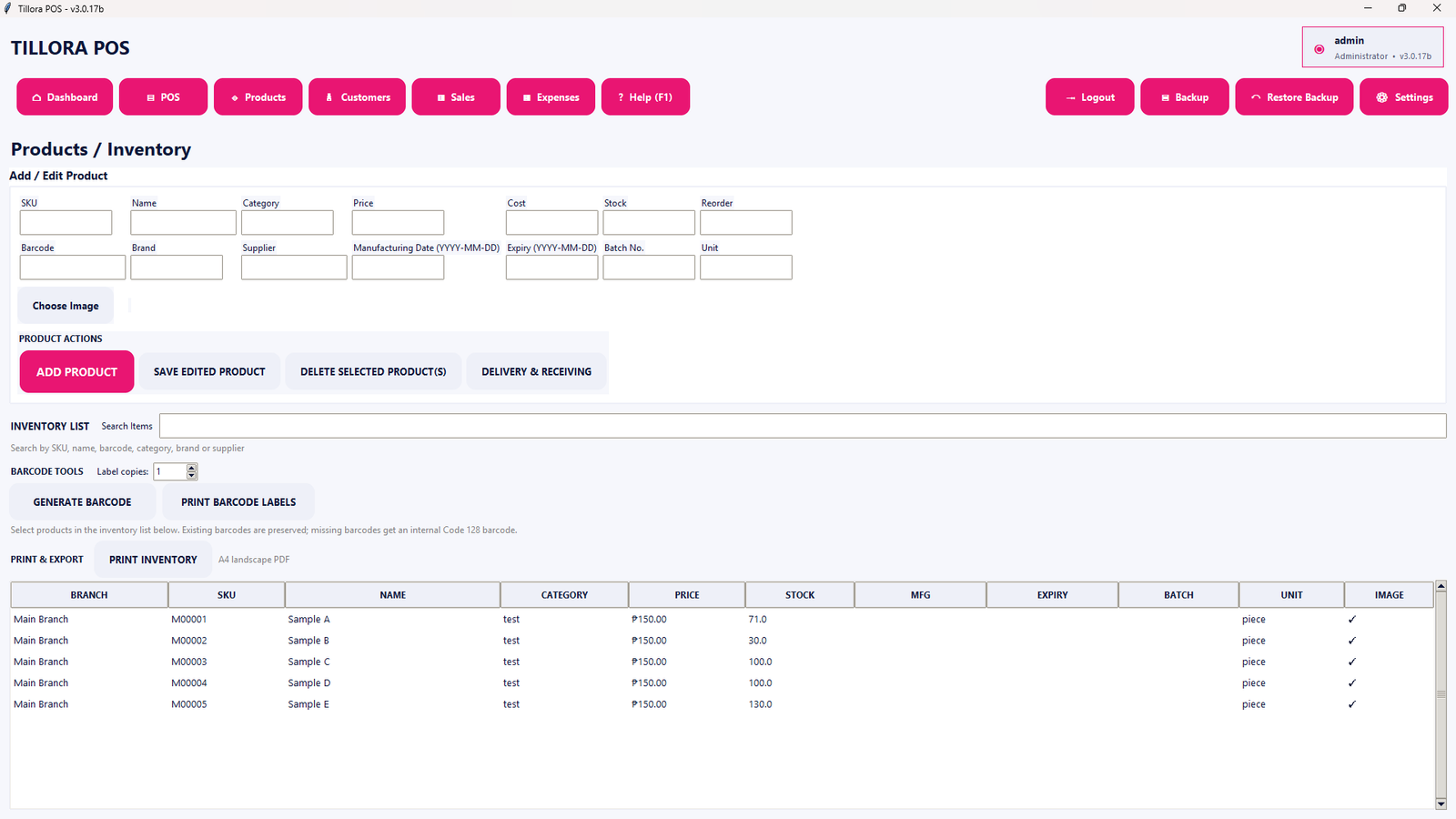
Maintain product details, pricing, inventory levels and stock information in one workspace.
Open full-size screenshot →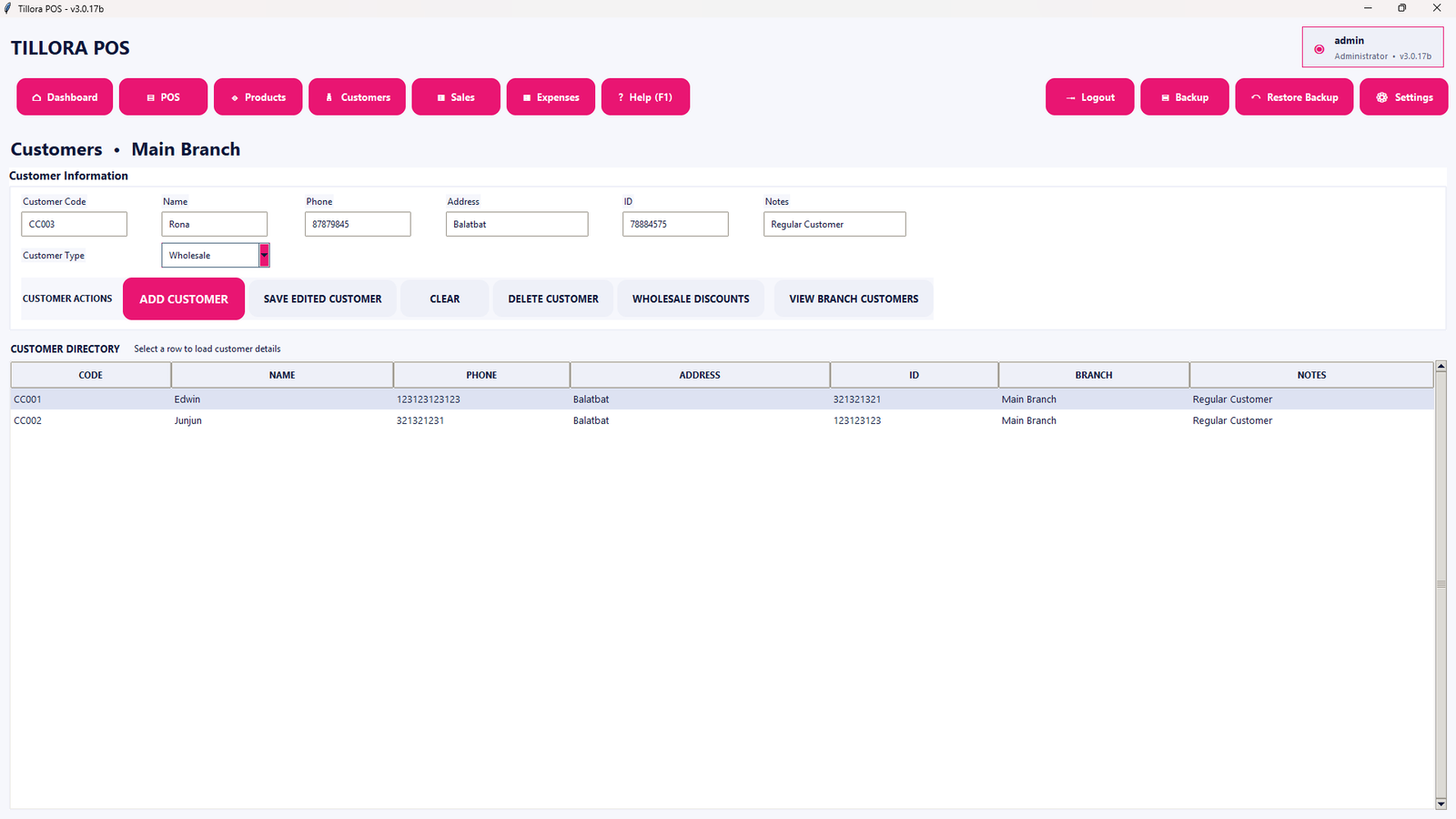
Organize customer profiles and related information for faster service and recordkeeping.
Open full-size screenshot →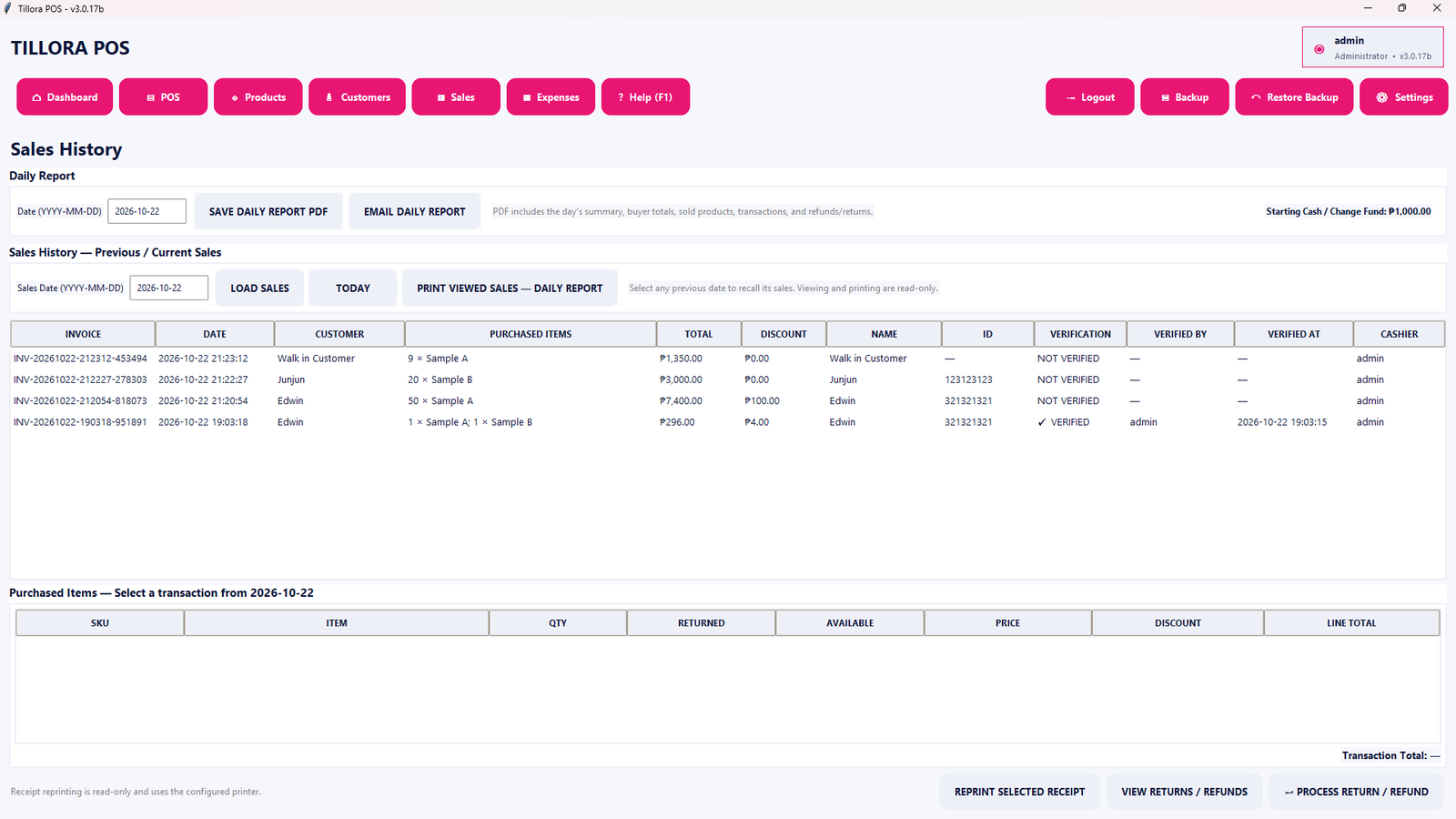
Review completed transactions and consult recorded sales for follow-up and reporting.
Open full-size screenshot →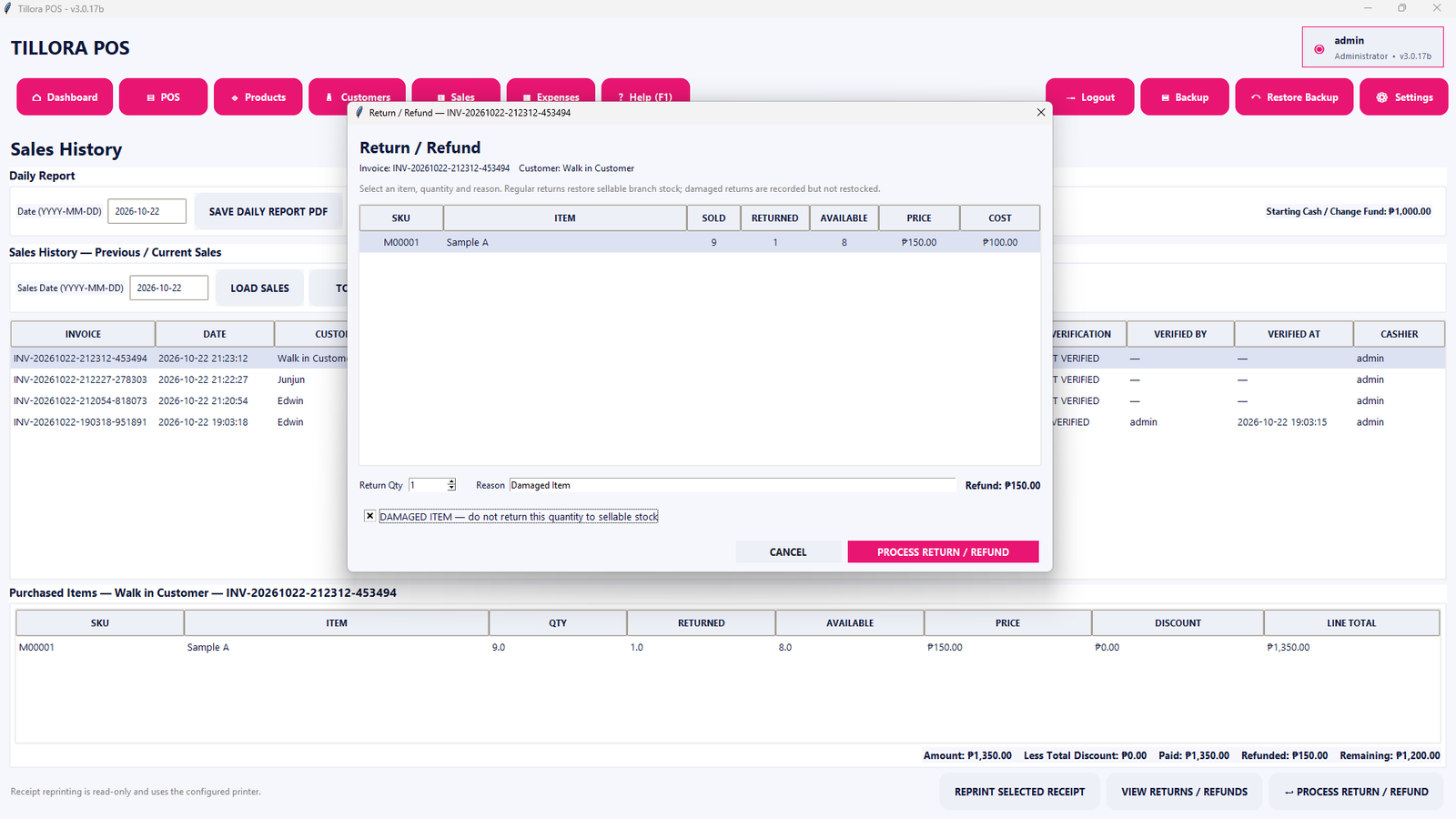
Handle eligible returns and refunds with records tied to the sales workflow.
Open full-size screenshot →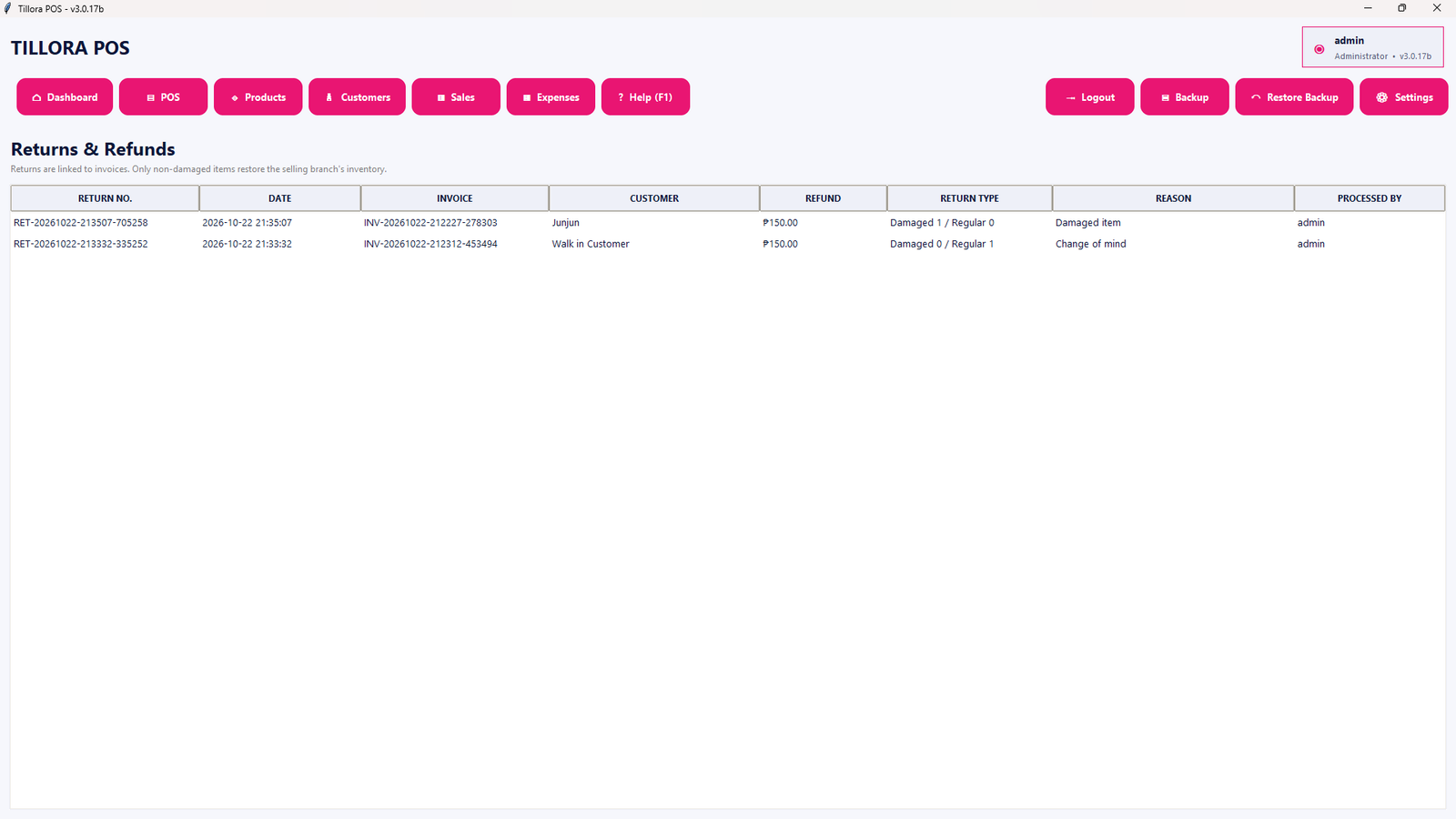
Review past returns and refund activity in a dedicated history screen.
Open full-size screenshot →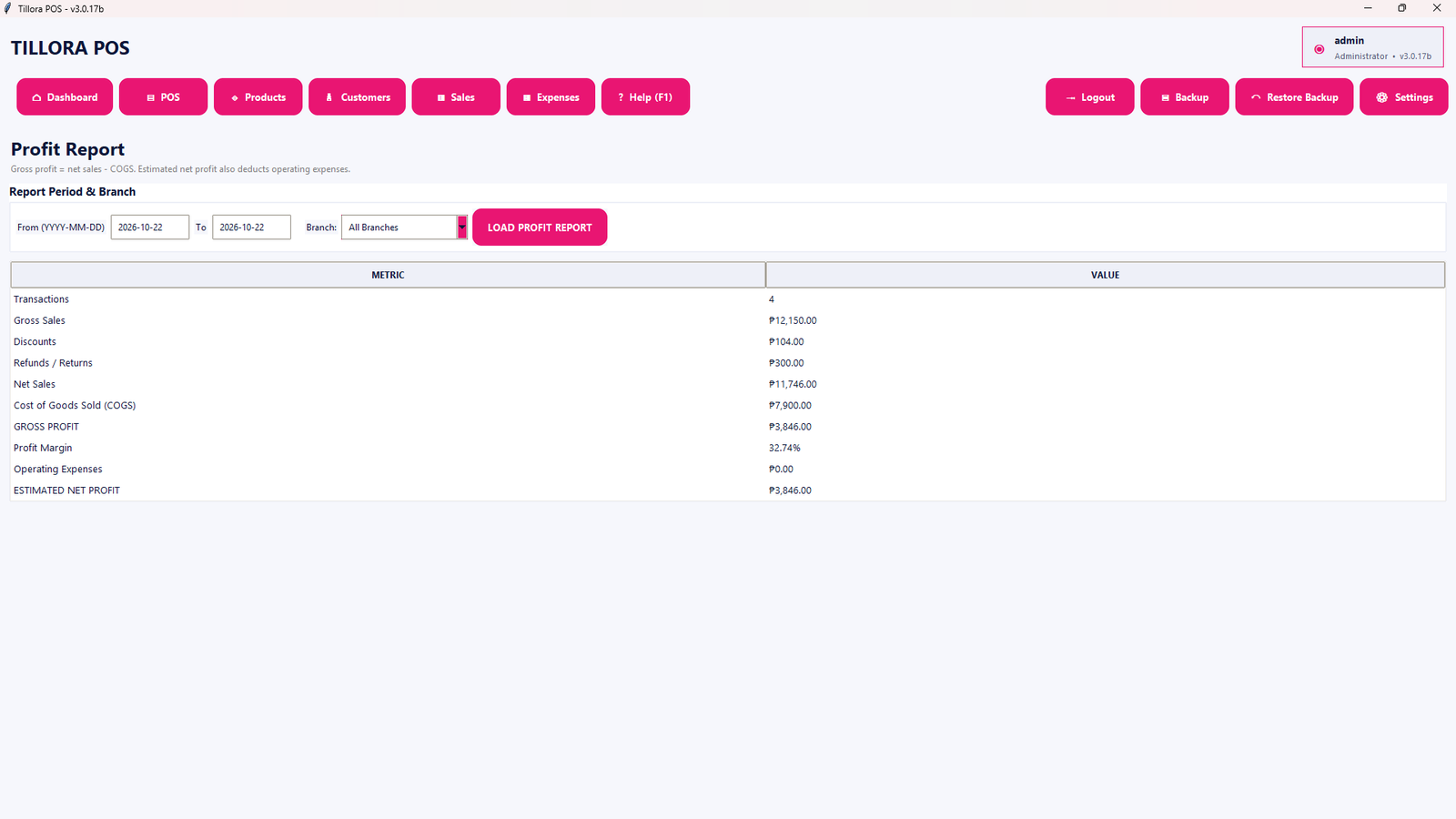
Inspect sales, costs and profit reporting to understand business performance.
Open full-size screenshot →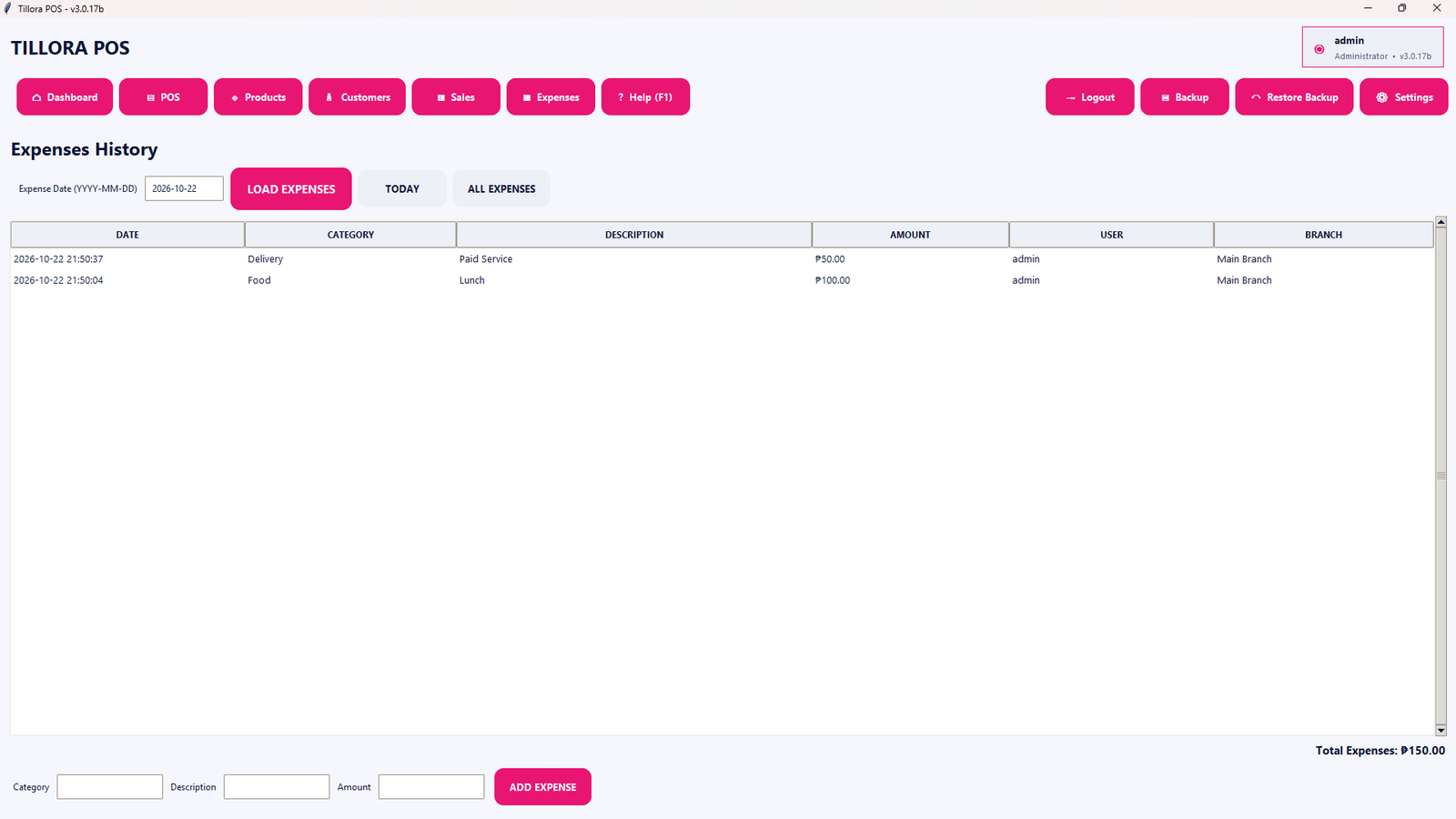
Review recorded business expenses and their history.
Open full-size screenshot →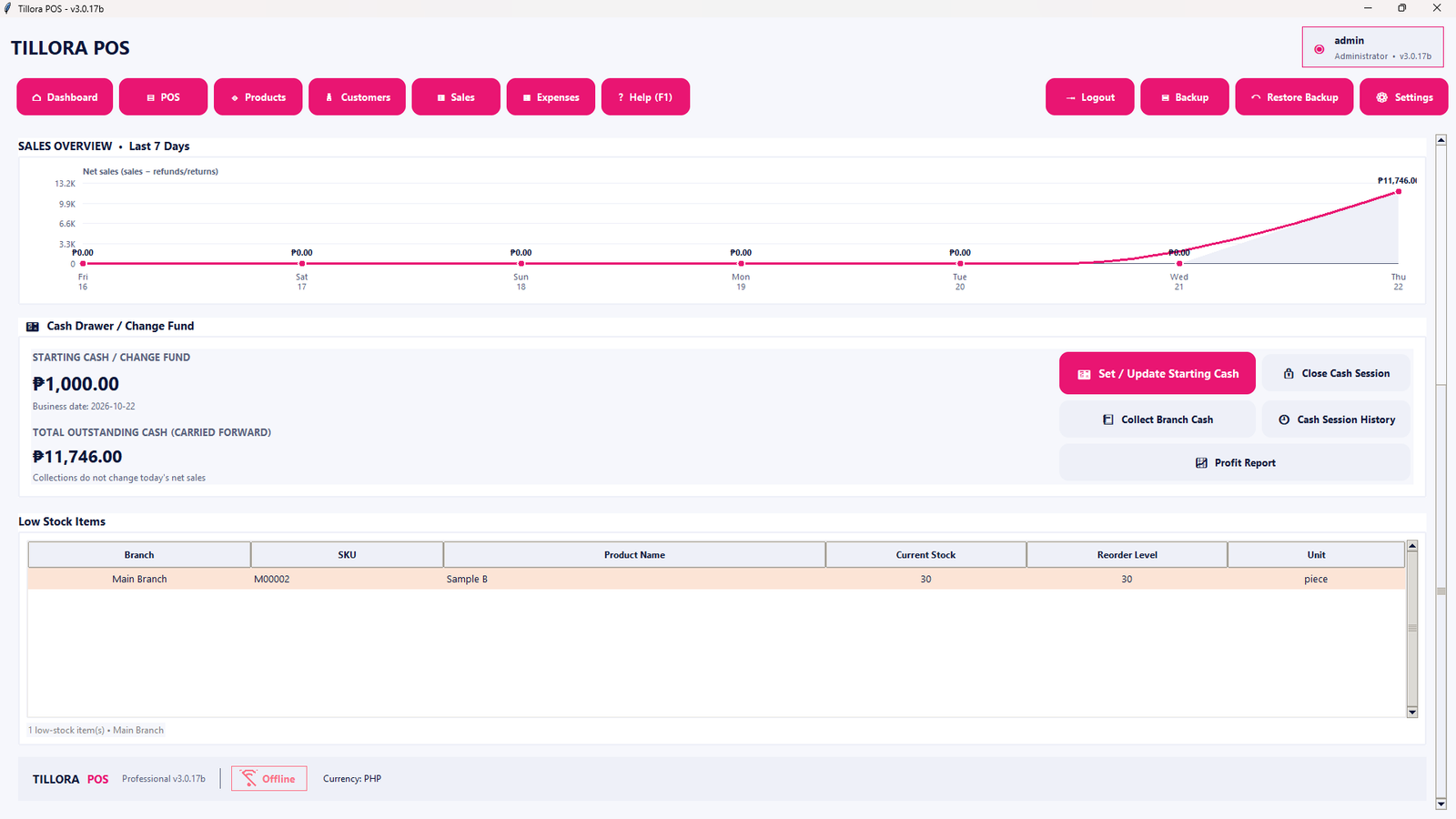
Identify products that need restocking using the low-stock overview.
Open full-size screenshot →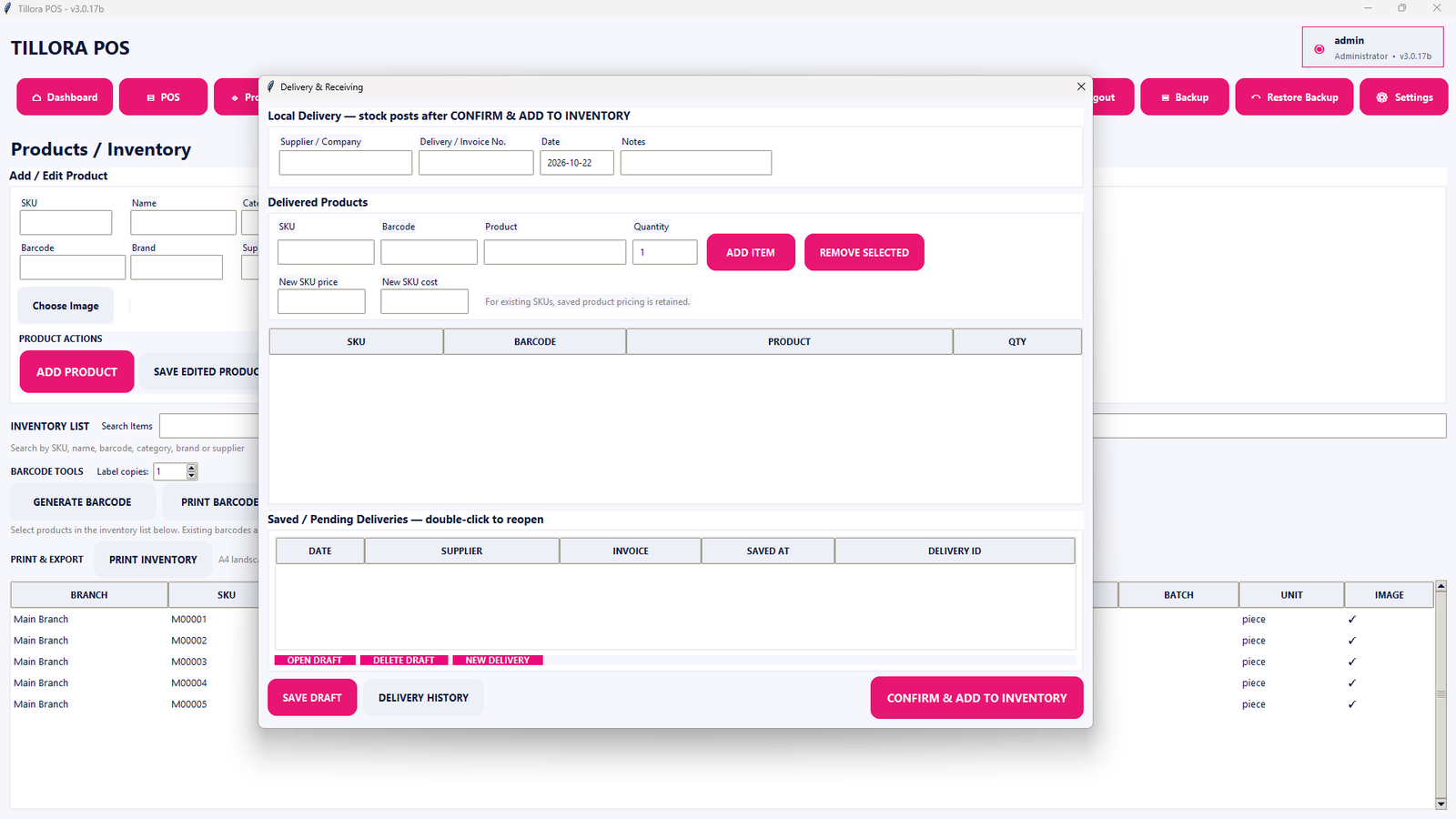
Record inventory receiving and delivery-related stock workflows.
Open full-size screenshot →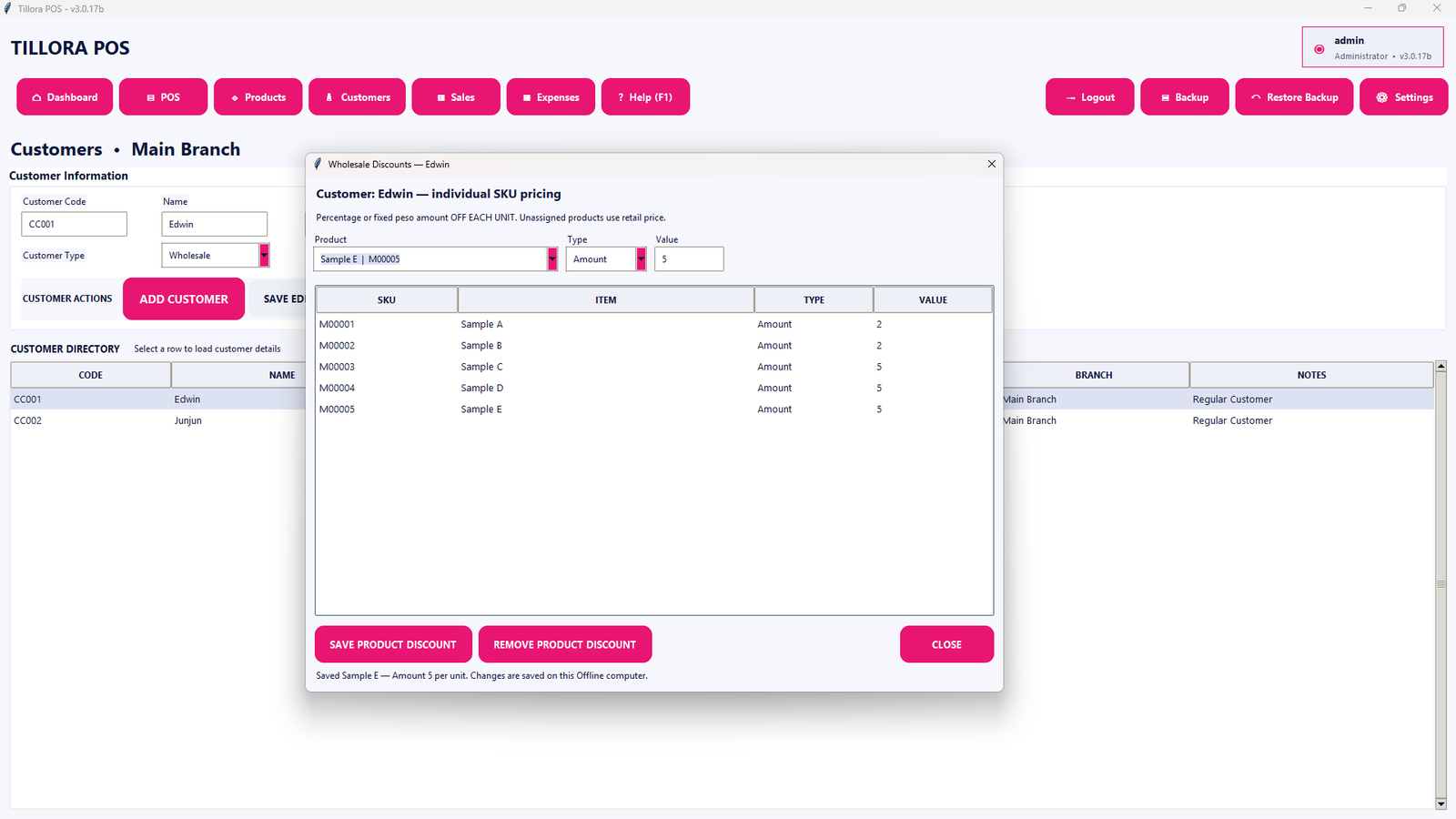
Use the wholesale discount interface for applicable bulk-pricing workflows.
Open full-size screenshot →
Apply supported manual discounts during checkout according to user permissions.
Open full-size screenshot →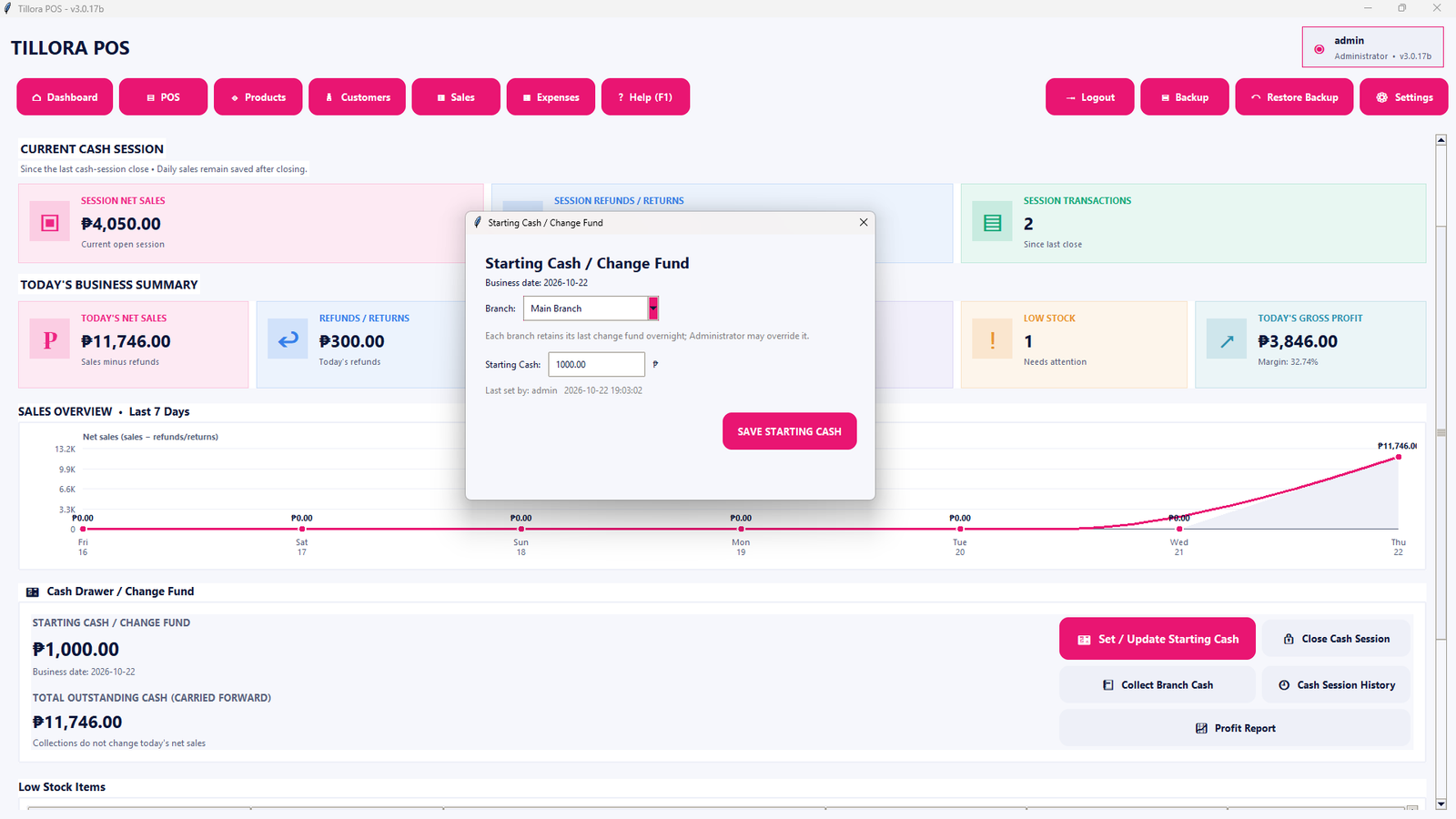
Set or update the starting cash amount for a cash session.
Open full-size screenshot →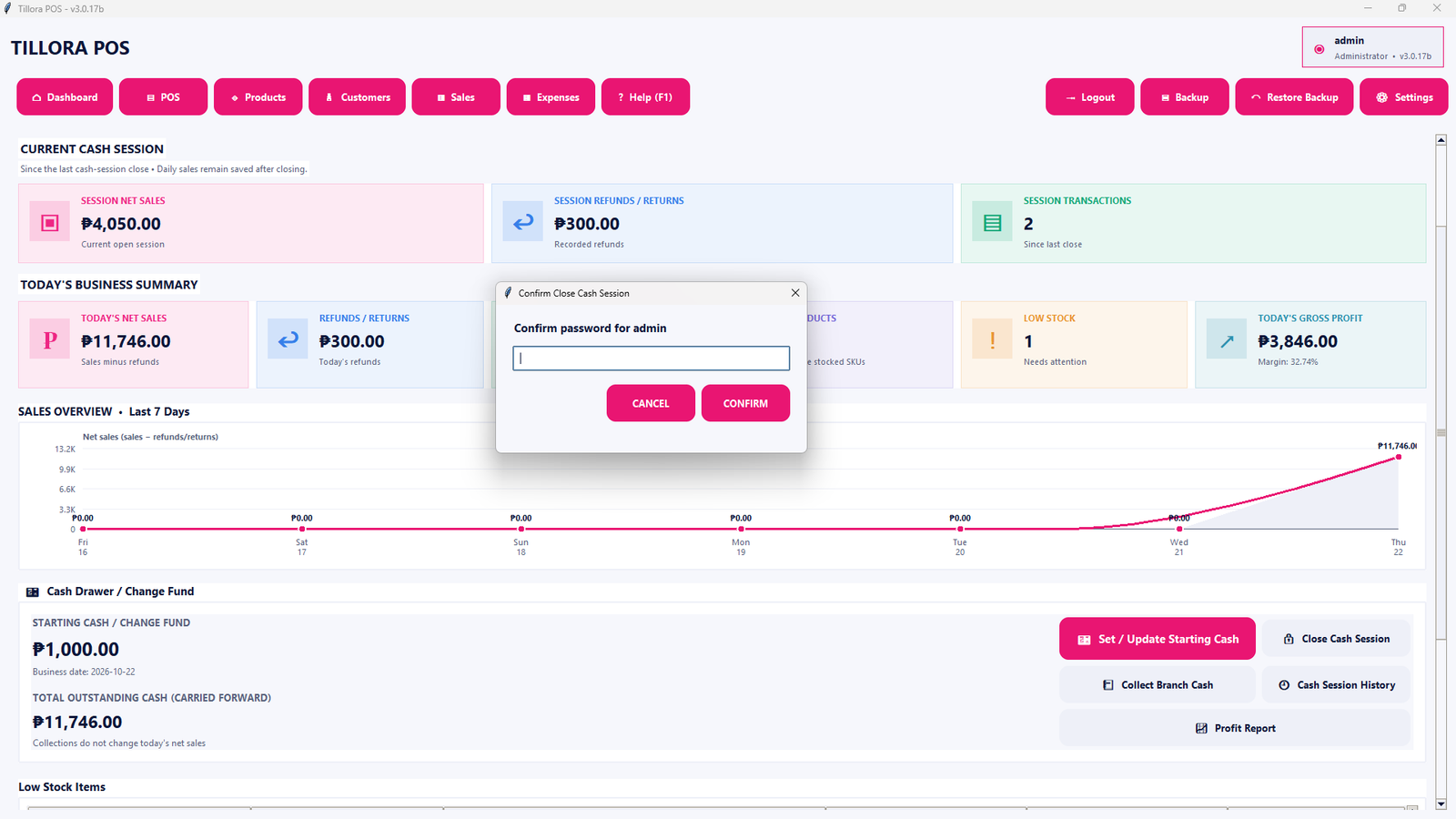
Review and close the current cash session using the closing workflow.
Open full-size screenshot →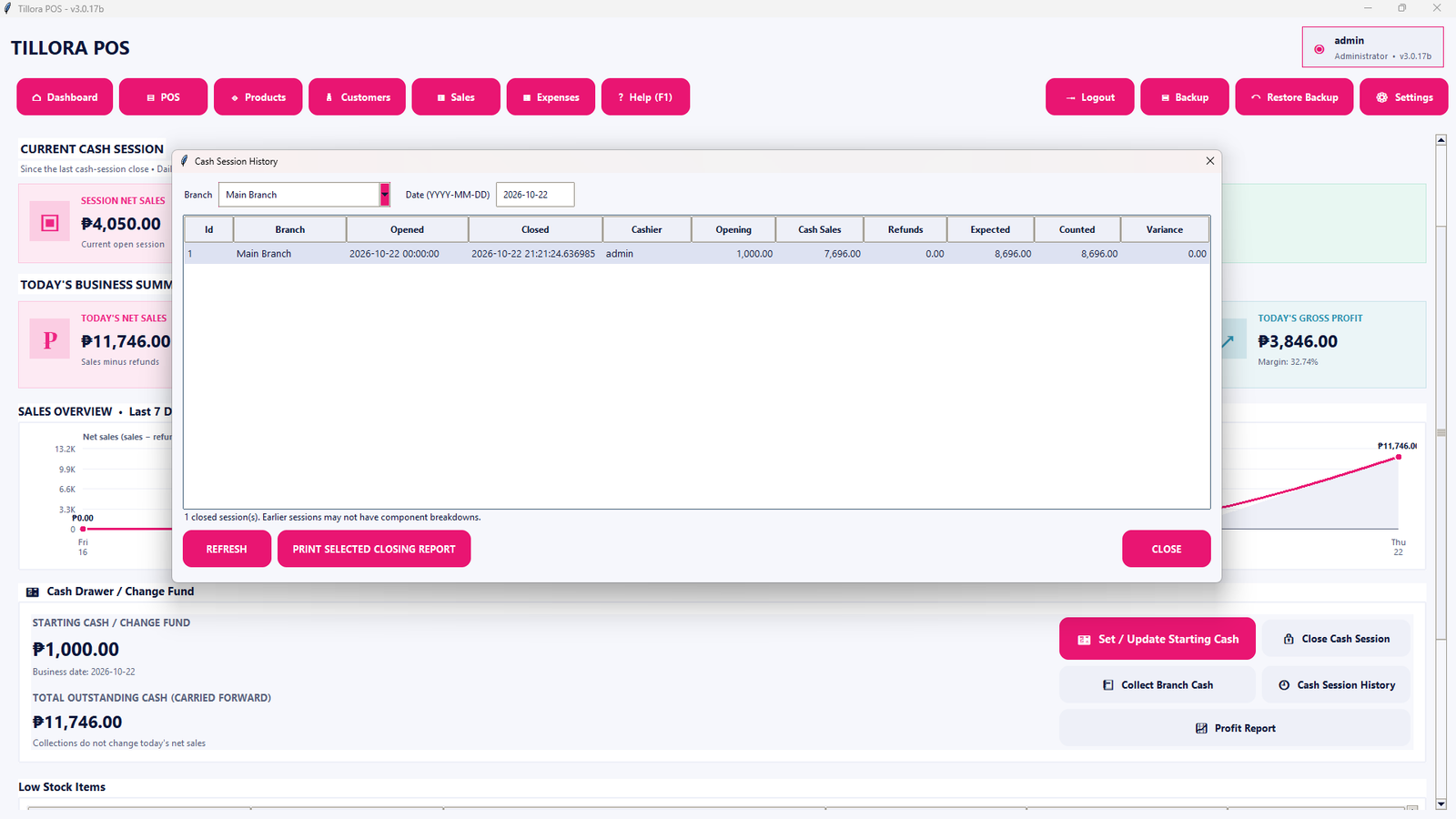
Inspect recorded cash sessions and past closing activity.
Open full-size screenshot →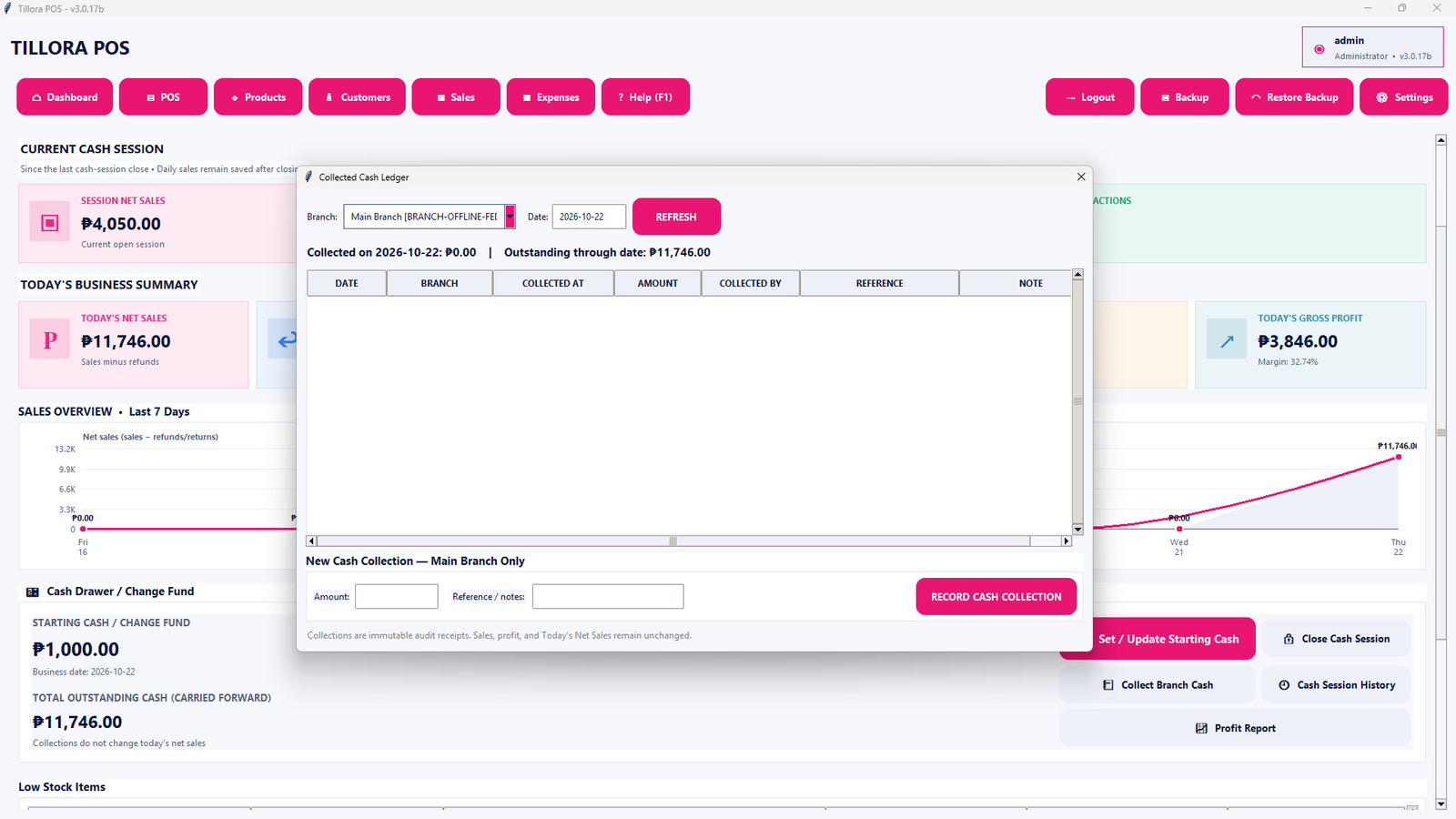
View the branch cash collection workflow available in the Professional interface.
Open full-size screenshot →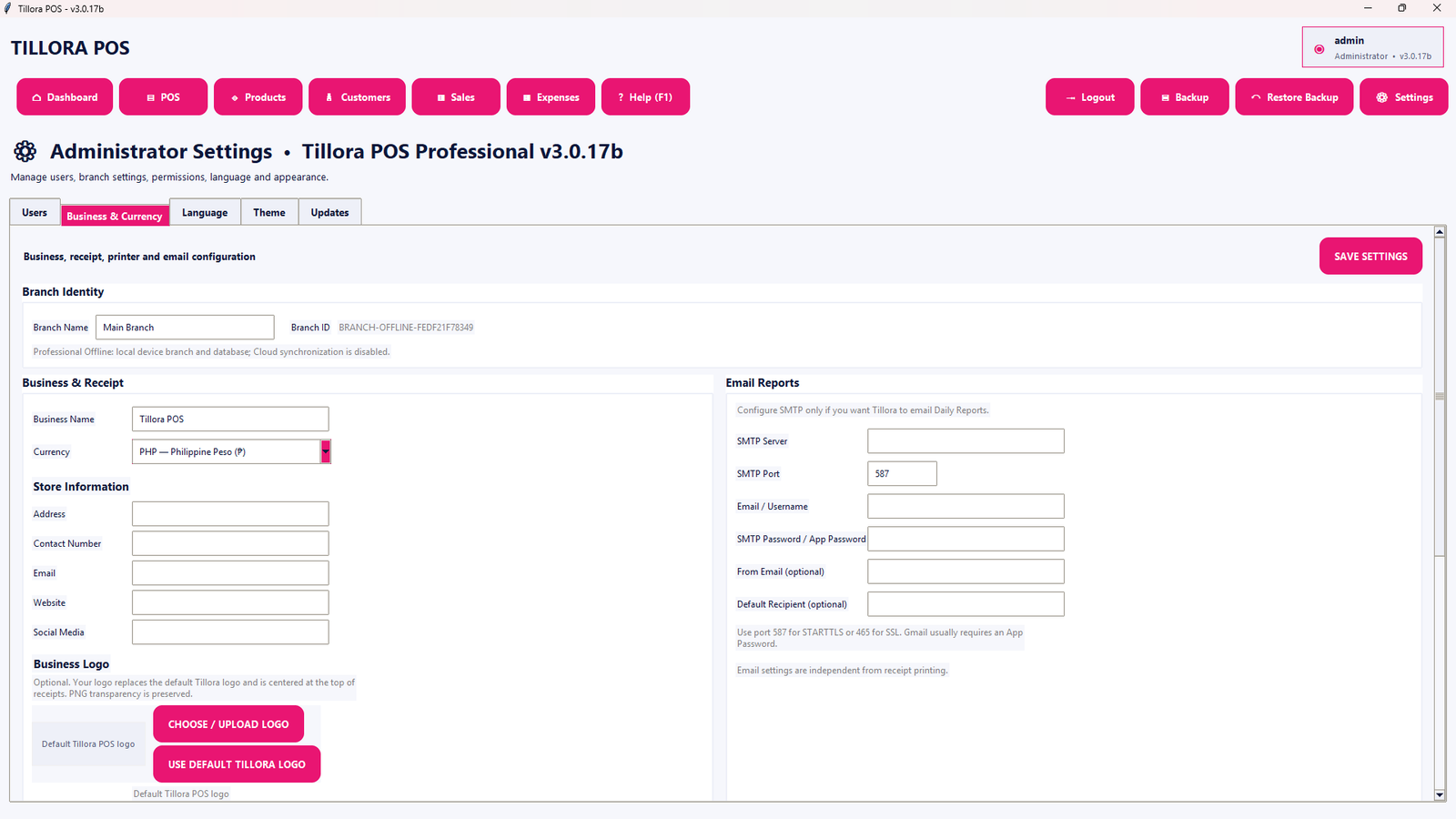
Configure business information and supported currency display options.
Open full-size screenshot →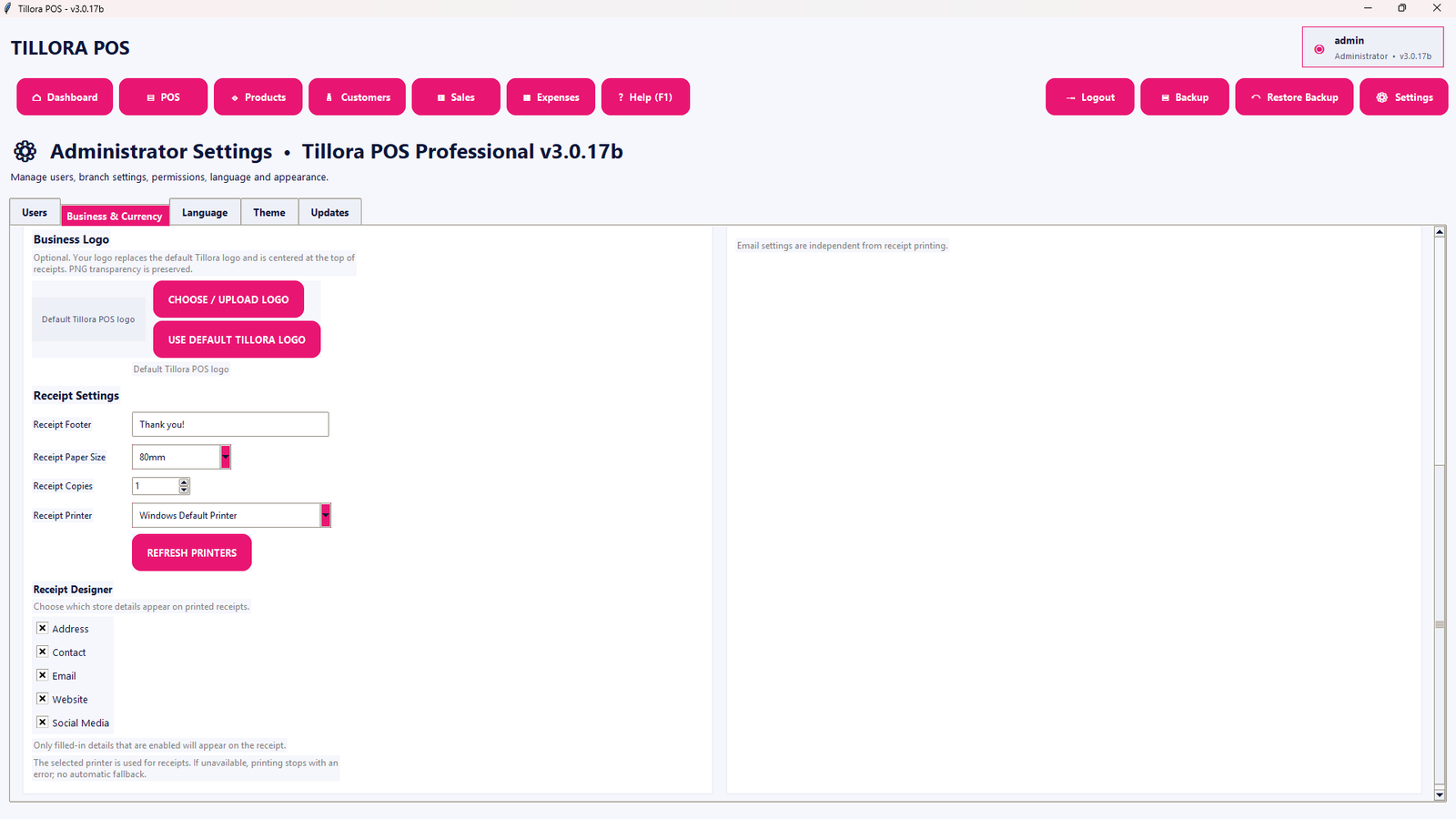
Adjust branding and receipt-related business preferences.
Open full-size screenshot →
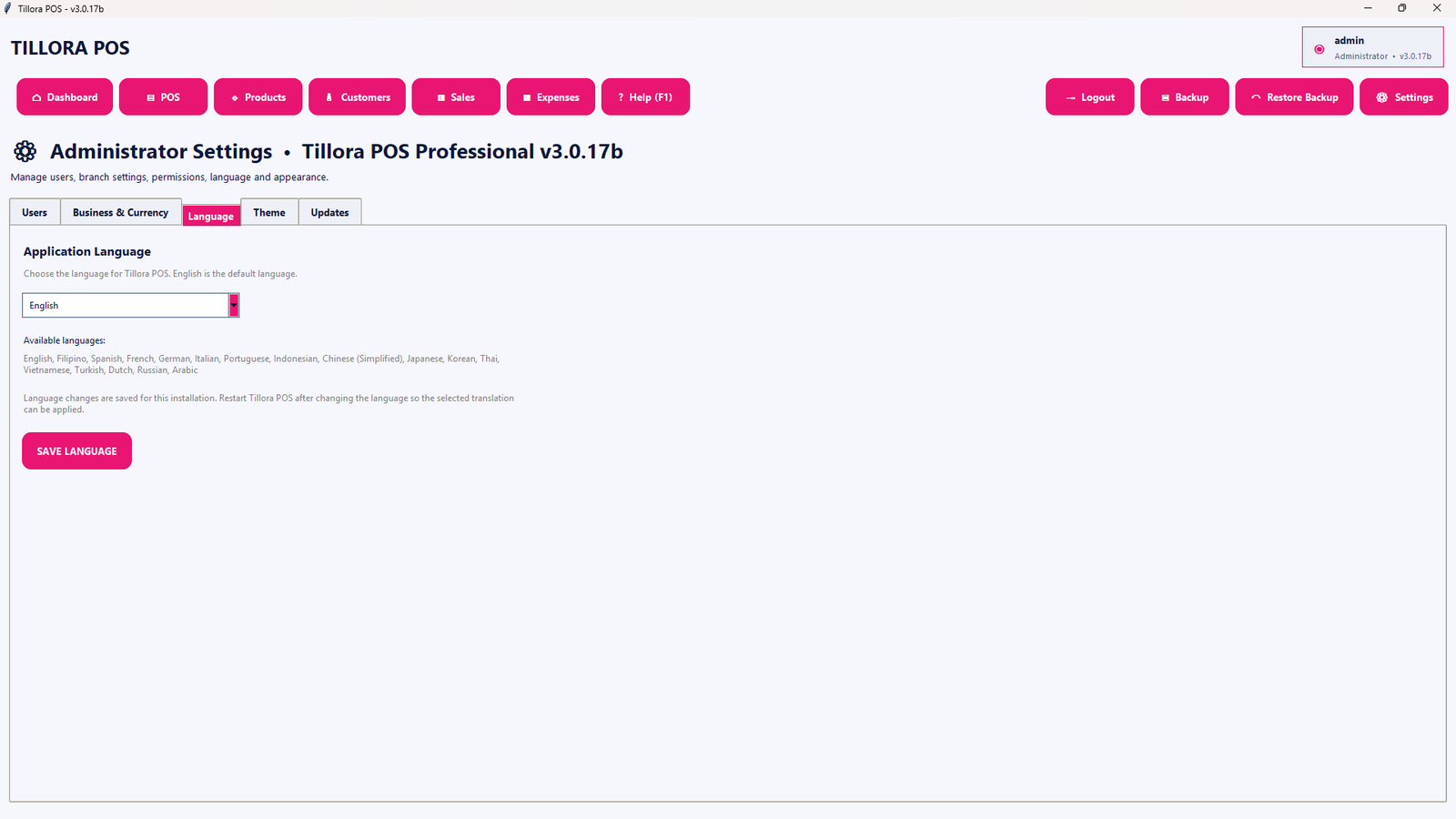
Choose from the application’s available language options.
Open full-size screenshot →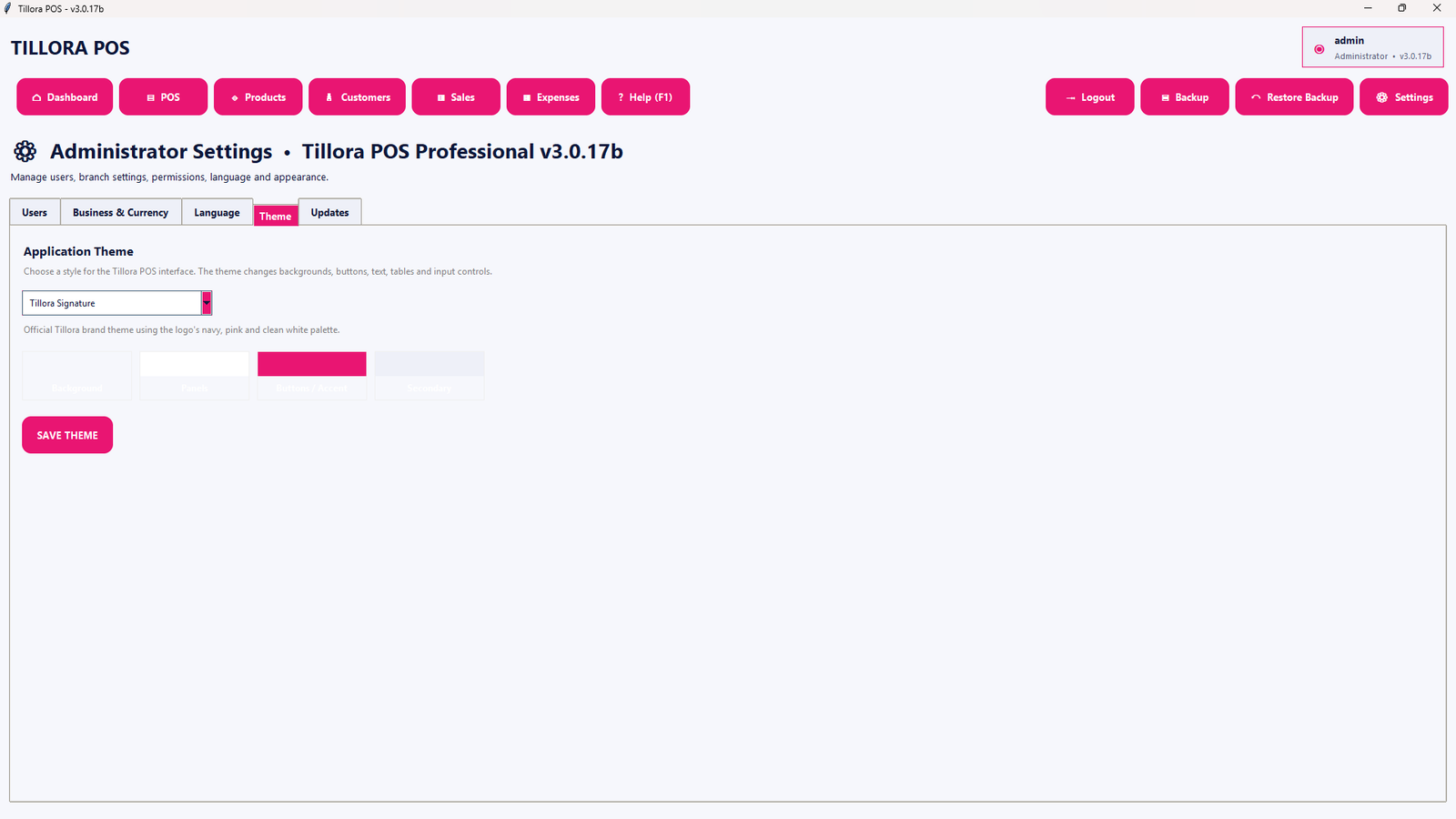
Choose and save the visual appearance of the Tillora POS interface.
Open full-size screenshot →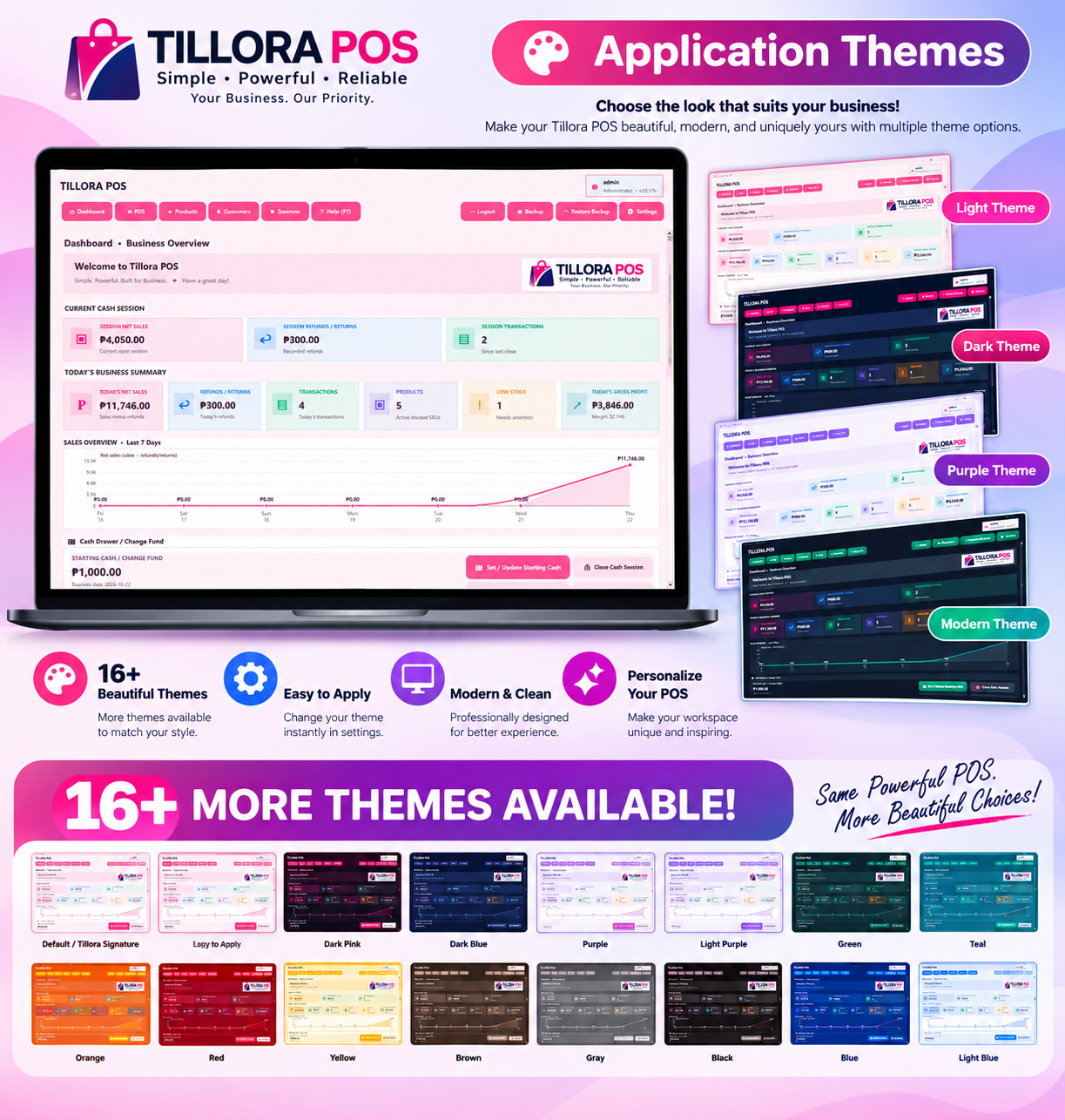
Explore different Tillora POS interface appearances and color palettes.
Open full-size screenshot →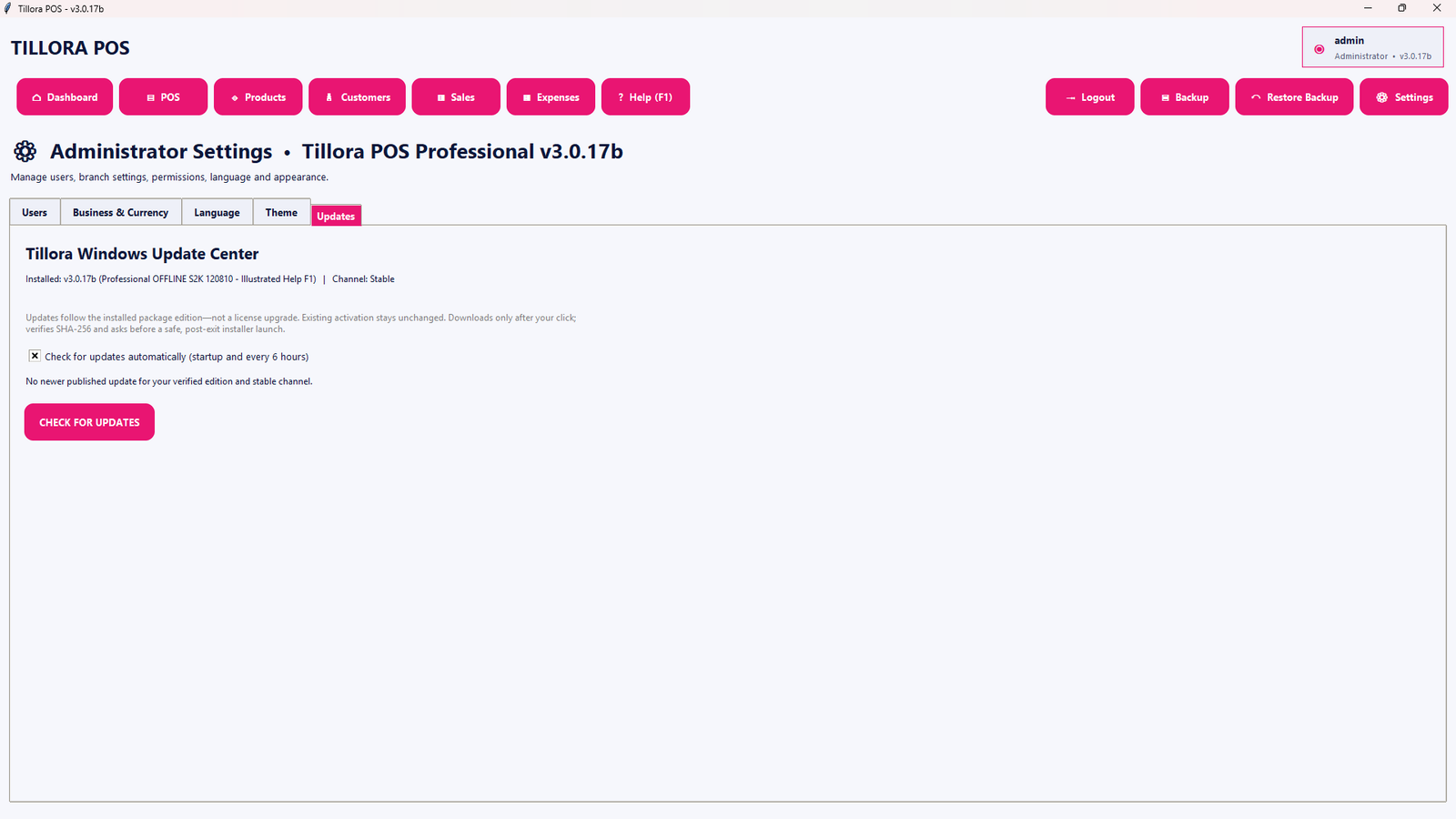
Use the application update screen to check for available software updates.
Open full-size screenshot →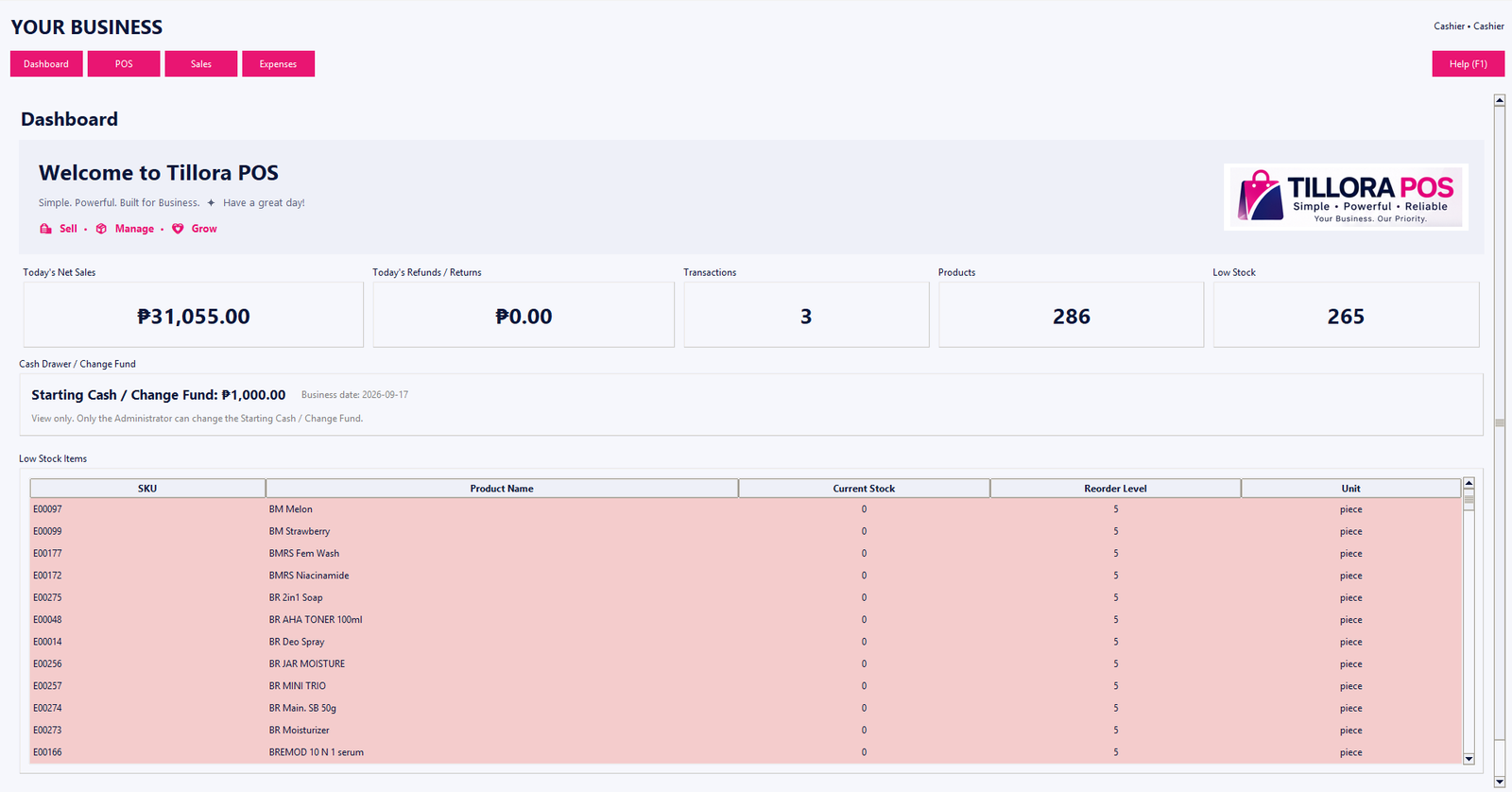
An earlier example of the cashier-focused workspace; appearance may differ in the current release.
Open full-size screenshot →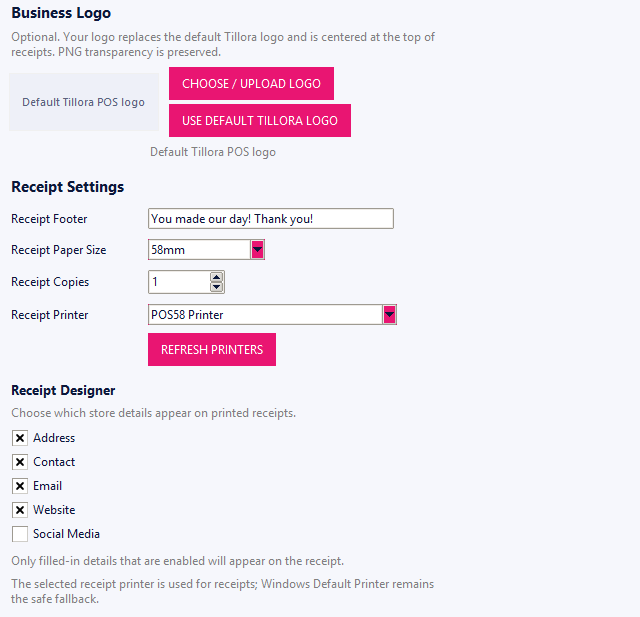
An earlier example of receipt layout configuration; appearance may differ in the current release.
Open full-size screenshot →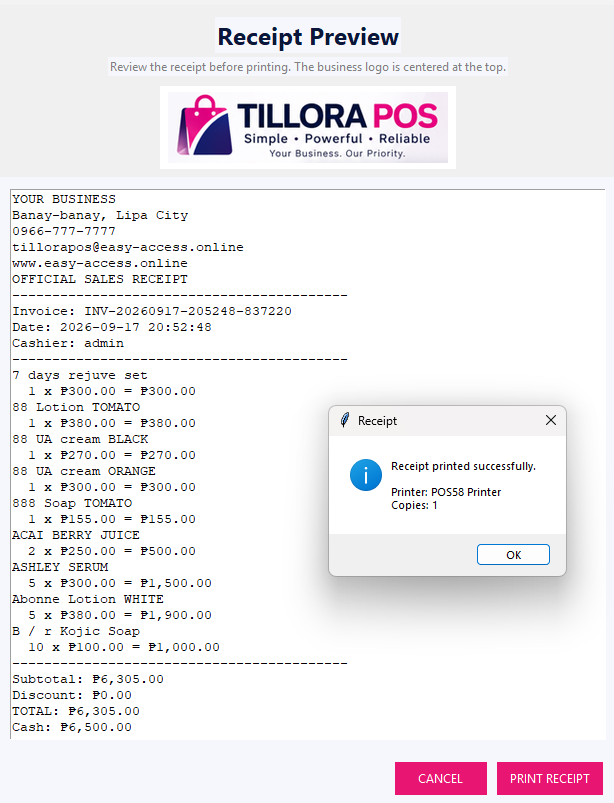
An earlier example of receipt preview and printing; appearance may differ in the current release.
Open full-size screenshot →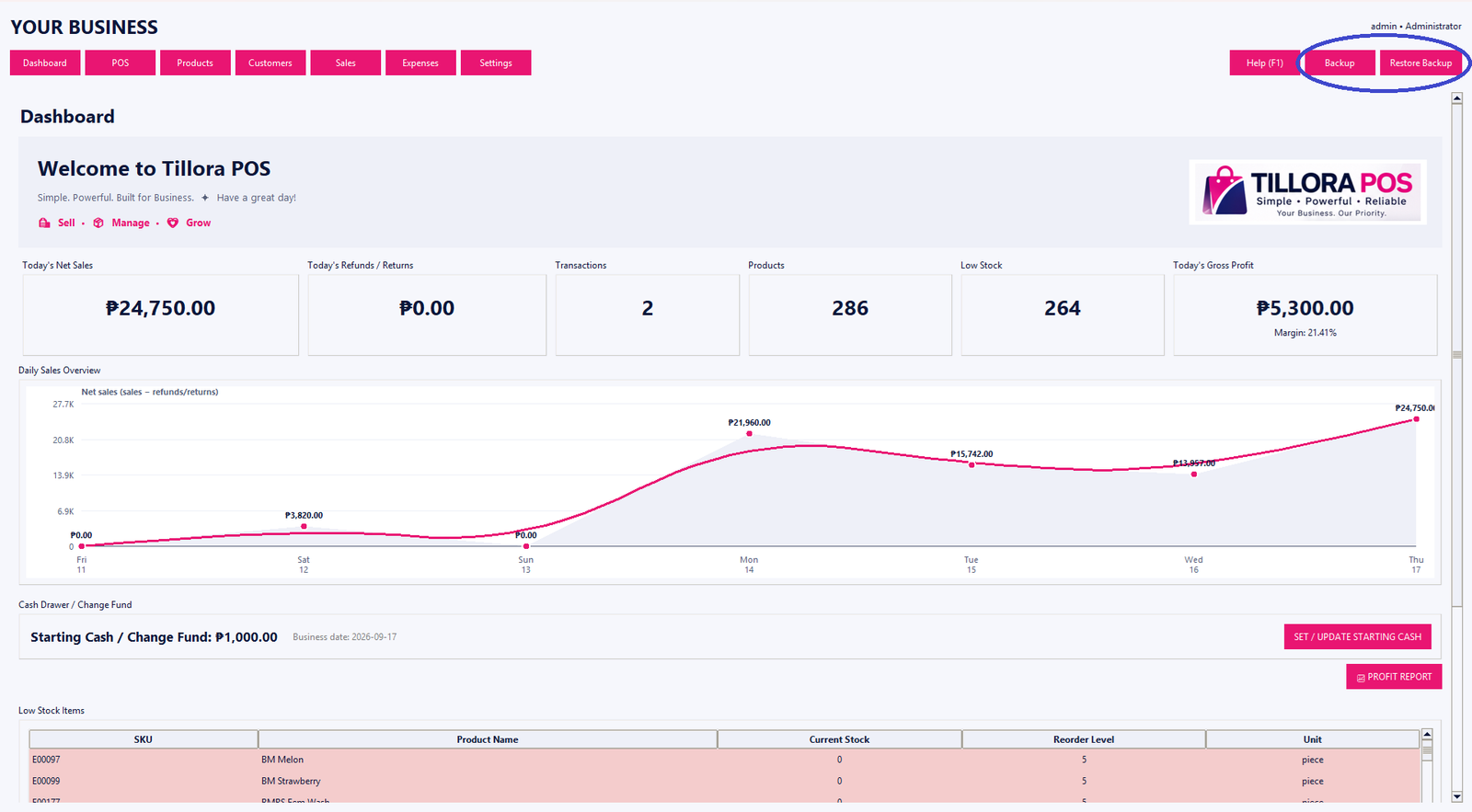
An earlier example of backup and restore tools; appearance may differ in the current release.
Open full-size screenshot →The gallery now includes updated Professional Offline Edition screens, including cash-session history, branch cash collection, inventory receiving, discounts and theme settings. Feature availability varies by edition and version. Cloud synchronization, branch monitoring and other connected capabilities are developed and tested separately; they are not implied to be included with the Offline Edition.
Compare Basic, Standard and Pro before you decide which feature set matches your workflow.